
Table of contents
- A saved place is not a downloaded map
- Download Google Maps offline on iPhone or Android
- Cover a city, road trip or country without gaps
- What still works when the internet disappears?
- Does GPS work without internet?
- Mountains, cruises and flights: know the limits
- Save data without promising zero usage
- Run this check before leaving Wi-Fi
- Questions travellers ask
Download the map area around your whole journey before leaving Wi-Fi—not just a pin for your hotel. Google Maps can then provide offline driving directions inside the downloaded area. On a GPS-equipped phone, your position can still work without mobile internet, although the satellite signal and location permissions must be available.
It is a useful backup for an airport transfer, a road trip through patchy coverage or finding your bearings after stepping ashore. It is not the full online app: offline walking, cycling and public-transport directions are unavailable, and live traffic needs a connection. Prepare the right backup for the way you will actually travel.

A saved place is not a downloaded map
Saving a hotel to a list is handy for organising a trip. Taking a screenshot is handy for showing an address. Neither is a substitute for deliberately downloading the surrounding map and checking it works offline. Treat your travel preparation as three separate jobs: save the place, save the area and keep the essential address somewhere easy to read.
For example, a hotel in central Lisbon and the airport are two different locations. Include both, plus the roads between them, rather than downloading a tight rectangle around your room. Add some breathing room for a different pickup point or a stop at a supermarket. This is planning advice, not a guarantee that every road will be open.
Download Google Maps offline on iPhone or Android
Use the Google Maps mobile app on a good connection. On Android, sign in; on iPhone or iPad, leave Incognito mode. Check that your device has space for the download. The menu names below are shared across the current iPhone and iPad and Android instructions.
- Open your profile picture or initial, then Offline maps.
- Choose Select your own map.
- Move and zoom the selection to include the area you need.
- Tap Download, and wait for it to finish before disconnecting.
You can also open a searched place’s details and look for More → Download offline map. If that option is absent, try selecting an area yourself. Some countries or regions do not allow offline downloads; confirm availability while you still have time to arrange another solution. Google’s offline-map walkthrough shows the selection process.
Do this on the device you will carry, not only on a tablet staying in your accommodation. If two people may split up, prepare each phone separately. A shared itinerary is not much help when the downloaded map is on the other person’s device across town.
Cover a city, road trip or country without gaps
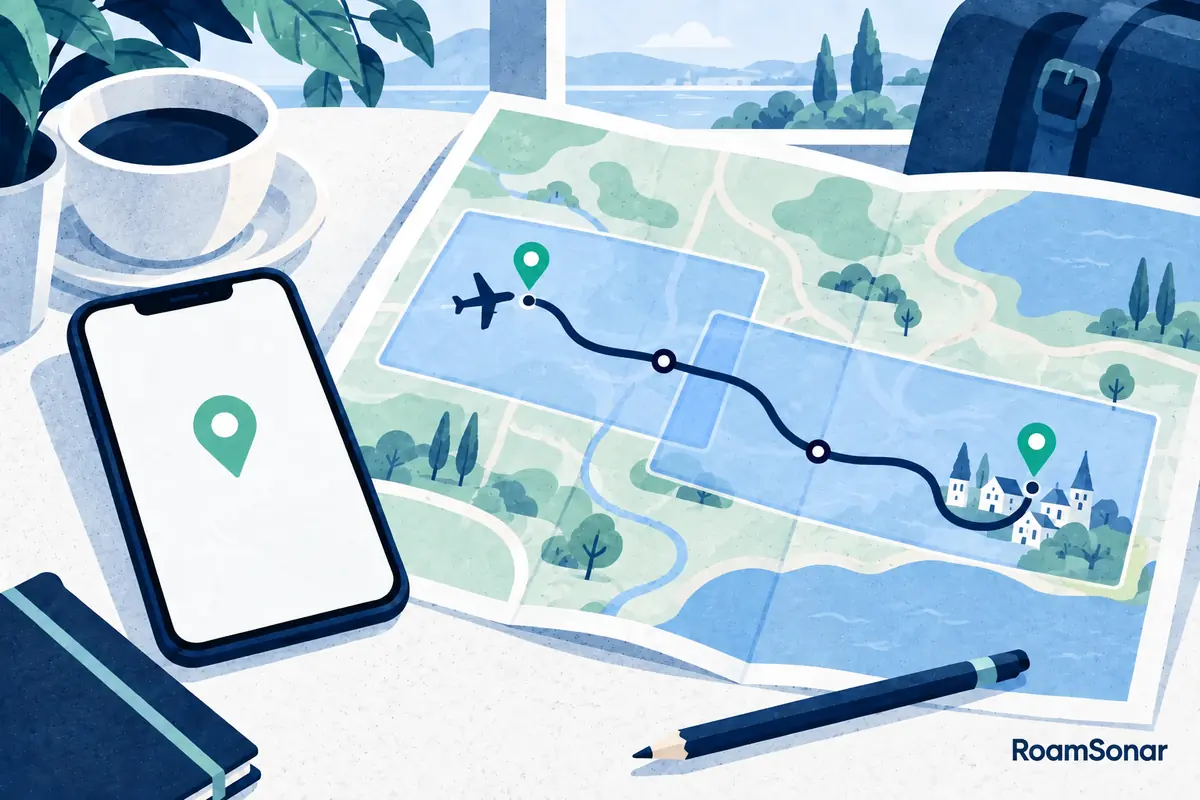
Think in journeys, not borders. You might fit a compact city break into one selection, while a large-country road trip needs several areas. The app’s available selection and storage estimate determine what you can save; a country name is not a promise of a one-tap national download.
| Trip | Areas worth preparing | Easy-to-miss detail |
|---|---|---|
| City break | Airport, accommodation and neighbourhoods you will visit | Airport may sit well outside the city centre |
| Road trip | Every overnight stop and the roads connecting them | Gaps between separately downloaded cities |
| Island stay | Arrival port or airport and places you will drive | Ferry arrival and departure ports may differ |
| Cruise shore visit | Actual terminal, town and return meeting point | Ship may use a different berth or tender landing |
| Mountain village visit | Approach roads, parking and nearby towns | Offline road maps are not a hiking route plan |
For a multi-stop drive, write the day’s route on a simple list before downloading: arrival point, first night, planned stop, second night. Trace each leg on the map while online. If you use separate saved areas, overlap their edges and check the connecting roads rather than hoping the app will fill a missing stretch later.
Avoid grabbing enormous areas simply because you can. You will be balancing map storage with photos, tickets and other downloads. A focused set of named areas is easier to check before departure than a collection you no longer recognise. Keep the return journey in the plan too; travel rarely ends at the first hotel.
What still works when the internet disappears?
| Feature | Offline expectation |
|---|---|
| Viewing downloaded streets | Available within the saved area |
| Driving guidance | Requires the entire route within downloaded coverage |
| Walking, cycling or transit directions | Not available offline in Google Maps |
| Live traffic and alternate driving routes | Not available offline |
| Your position | Depends on device location hardware, permissions and reception |
| Fresh messages, ride bookings and web pages | Require their own working connection |
The difference matters for a city visit. Looking at a street map can help you recognise where the museum sits, but it does not provide a supported offline walking itinerary. Do not follow car directions as pedestrian guidance: a driving route may use roads unsuitable or prohibited for people on foot.
For a train connection, keep the official operator’s ticket, station name and timetable separately. For a walk, prepare a suitable offline walking map or clear written directions. For a taxi pickup, save the address in the local language where practical. Those small preparations are often more useful than another screenshot of a zoomed-out city.
Does GPS work without internet?
GPS positioning and mobile internet are different systems. A phone’s satellite receiver can determine a position without an active data plan; downloaded maps provide the background on which that position appears. Internet-assisted location features may improve acquisition, but losing a mobile network does not automatically disable satellite positioning.
Reception still matters. Buildings, trees, tunnels and being indoors can obstruct or degrade satellite signals. A blue dot is not proof of precise positioning: compare it with your surroundings and road signs. The GPS accuracy guidance explains why the same device can behave differently under open sky and between tall buildings.
Give Google Maps location permission and check the device’s location setting. If the dot is missing or unreliable, stop somewhere safe before troubleshooting. The location-accuracy help covers Android checks; changing settings while driving is not a sensible way to recover a missed turning.
Tablets need extra care. Do not assume a Wi-Fi-only iPad has the same standalone satellite-positioning hardware as a cellular model. For example, the iPad A16 specifications list GPS/GNSS for Wi-Fi + Cellular models. Our iPad connectivity guide helps you check the device rather than guessing from the map app being installed.
Mountains, cruises and flights: know the limits

An eSIM gives a compatible device access to the networks included in its package. It does not create continuous coverage through mountains, at sea or in the air. A country data plan is not automatically a cruise or aircraft package; even specialist services depend on supported ships, aircraft, networks and operating conditions.
For a mountain hike, use appropriate trail mapping, check local conditions and carry a backup you know how to use. A downloaded road map cannot confirm a path is safe, accessible or open. Follow the National Park Service’s hiking preparation guidance: do not rely on mobile reception, and make an emergency plan before setting off.
For a cruise, download each port’s surrounding area before going ashore and record the ship’s return time and meeting point separately. Offline Google Maps can help with land orientation; it is not a marine chart or a navigation tool for sailing. Read our cruise connectivity guide before assuming your normal travel plan works offshore.
On a flight, the useful preparation is usually your arrival airport, accommodation and onward transport. Follow the crew’s device instructions. A saved map is not inflight internet, and viewing a position from the cabin depends on reception. Keep your booking details downloaded so an unavailable map does not leave you without the address you need after landing.
Save data without promising zero usage
Downloading over Wi-Fi moves the map download away from your travel allowance. How much that saves depends on the area, your trips and what you otherwise load; there is no honest universal percentage. Maps can still use internet features when connected, and other apps continue using data according to their settings.
A practical combination is offline maps for resilience and a modest travel-data allowance for live transport information, messages and unexpected changes. Do not buy data solely around navigation: video, photo backups and hotspot use may matter much more. Use our 7-, 14- and 30-day data budgeting guide to make that decision.
Run this check before leaving Wi-Fi
- Open your saved areas and check for expired or expiring downloads. Update them while connected.
- Confirm the arrival point, accommodation, connecting route and planned stops are inside your areas.
- Temporarily turn off Wi-Fi and mobile data, leaving location services available. Reopen the map and test a driving journey within a downloaded area.
- Restore your normal connection settings afterwards. Keep addresses, tickets and important contact details saved separately.
- Pack charging options and a suitable navigation backup for remote travel.
Offline maps need updates before they expire. In Offline maps, select an expiring area and use Update; automatic updates are available in its settings. Review download preferences so you know which connection will carry large updates. On a long trip, make this part of your next reliable Wi-Fi stop rather than leaving it until the map stops working.
If the test fails, solve that specific problem before departure. Check for an unfinished download, missing route section, unavailable country or insufficient storage. If driving works but transit does not, that is a feature limit rather than a broken download. Preparation should leave you with a tested backup—not merely a download button you remember tapping.
Questions travellers ask
Can I download a whole country in Google Maps?
Possibly in several areas, depending on its size, download availability and storage. Plan around your actual journey and check every connecting stretch instead of assuming one selection covers the country.
Will a screenshot of my route work like an offline map?
No. It is a static reference, useful for an address or meeting point, but it does not replace downloaded map data and navigation. Keep it as an extra backup.
Do I need an active eSIM for offline GPS navigation?
Not for satellite positioning on a suitable device or viewing an already downloaded map. You still need the appropriate hardware, permissions, power and reception. Online services need a connection.
Are offline maps enough for a remote mountain trip?
No single phone app should be your whole safety plan. Use navigation suited to the terrain, check local advice, carry backup power and mapping, and prepare for being unable to make a mobile call.