
Table of contents
- Check whether your iPad supports eSIM
- Choose your own tablet plan or a phone hotspot
- Set up travel data on the iPad
- Share your phone’s data without moving its eSIM
- Apple Watch: a wearable plan, not a spare travel eSIM
- Samsung Galaxy Watch: check LTE and carrier support
- Pack a connection plan, not just more gigabytes
- Questions travellers ask
You can use an eSIM on a compatible Wi-Fi + Cellular iPad, but not on a Wi-Fi-only iPad. If your tablet lacks cellular hardware, connect it to your phone’s hotspot instead. Apple Watch and Samsung Galaxy Watch are a different case: independent mobile service needs a supported cellular watch and an eligible wearable plan, not a copy of your tablet’s eSIM.
For travel, the useful question is not how many devices have an eSIM logo on the box. It is which devices need their own connection. A tablet used beside your phone can often share that phone’s data. A tablet carried by someone heading out separately needs a more independent arrangement.
Check whether your iPad supports eSIM
Find the model name and model number in Settings → General → About, then match the number with Apple’s iPad identification guide. Check the cellular variant, not just the screen size or purchase year. An expensive iPad Pro can still be Wi-Fi-only.
| iPad family | Wi-Fi + Cellular models supporting eSIM |
|---|---|
| iPad | 7th–10th generation; iPad (A16) |
| iPad mini | 5th and 6th generation; mini (A17 Pro) |
| iPad Air | 3rd–5th generation; 11-inch and 13-inch M2, M3 and M4 |
| iPad Pro | 11-inch 1st–4th generation; 12.9-inch 3rd–6th generation; 11-inch and 13-inch M4 and M5 |
Use the current iPad eSIM compatibility list for your exact device. The cellular A16, Pro M4 and later, Air M2 and later, and mini A17 Pro and later use eSIM rather than a physical SIM tray. Older Apple SIM support is not the same thing as modern eSIM support.
Purchase region matters. Mainland China has specific supported models and activation rules, so do not assume a same-name model bought elsewhere behaves identically. Check the mainland China iPad guidance before buying service for that situation. For a work-managed tablet, also ask your administrator whether adding a personal plan is allowed.
Choose your own tablet plan or a phone hotspot
A separate iPad plan makes sense when you work from the tablet during the day, travel separately from the person carrying the phone, or want to leave your phone packed away. A hotspot is a sensible starting point for occasional browsing, checking bookings and sending a few documents from the same café table.
| Connection | Best fit | Important trade-off |
|---|---|---|
| iPad’s own travel eSIM | Independent tablet use away from Wi-Fi | Another allowance to buy and manage |
| Phone hotspot | Occasional tablet use near your phone | Depends on phone battery, signal and tethering permission |
| Carrier tablet add-on | An existing account with an eligible sharing option | Confirm extra-line and overseas charges |
| Trusted Wi-Fi | Large downloads before departure | Not a connection you can rely on everywhere |
Before paying, check tablet compatibility, destination coverage, validity start and hotspot terms for the actual package. Do not rely on a provider’s general claim that it supports eSIM. Ask about your exact iPad if the compatibility list is unclear, and keep the answer with your order confirmation.
Think through a normal travel day. If your partner takes the phone sightseeing while you stay behind with the tablet, hotspot sharing will not solve your connection problem. If both devices stay in your backpack until the evening, buying a second plan may be unnecessary. Choose around that routine rather than the biggest advertised allowance.
Set up travel data on the iPad
Install while you have reliable Wi-Fi and time to read the activation conditions. Some packages begin their validity when installed; others begin later. Follow your purchased plan’s instructions instead of assuming an airport arrival automatically starts the clock.
- Update iPadOS, charge the tablet and keep your order confirmation available on another screen if needed.
- Use the provider’s supported activation method: an app, carrier activation or a QR code. For QR setup, scan the code with the iPad Camera and follow the cellular-plan prompts.
- Review the selected plan in Settings → Cellular Data. On supported carriers, this area also offers tablet-plan transfer or joining an eligible iPhone plan.
- At the destination, select the intended data plan and apply the provider’s roaming or APN instructions only if required.
- Turn off Wi-Fi briefly and open a simple webpage to confirm that the tablet itself has a working connection.
Menu wording varies by region and software. Use Apple’s iPad activation instructions if a button differs. On iPadOS 17.4 or later, a compatible QR code received in email or on a webpage can also be pressed and held to choose Add eSIM.
Keep the original QR code private. If activation stalls, do not repeatedly delete the profile and scan again: check whether the provider permits reinstallation first. Save the error message, device model and order number for support, without posting activation credentials publicly.
Share your phone’s data without moving its eSIM
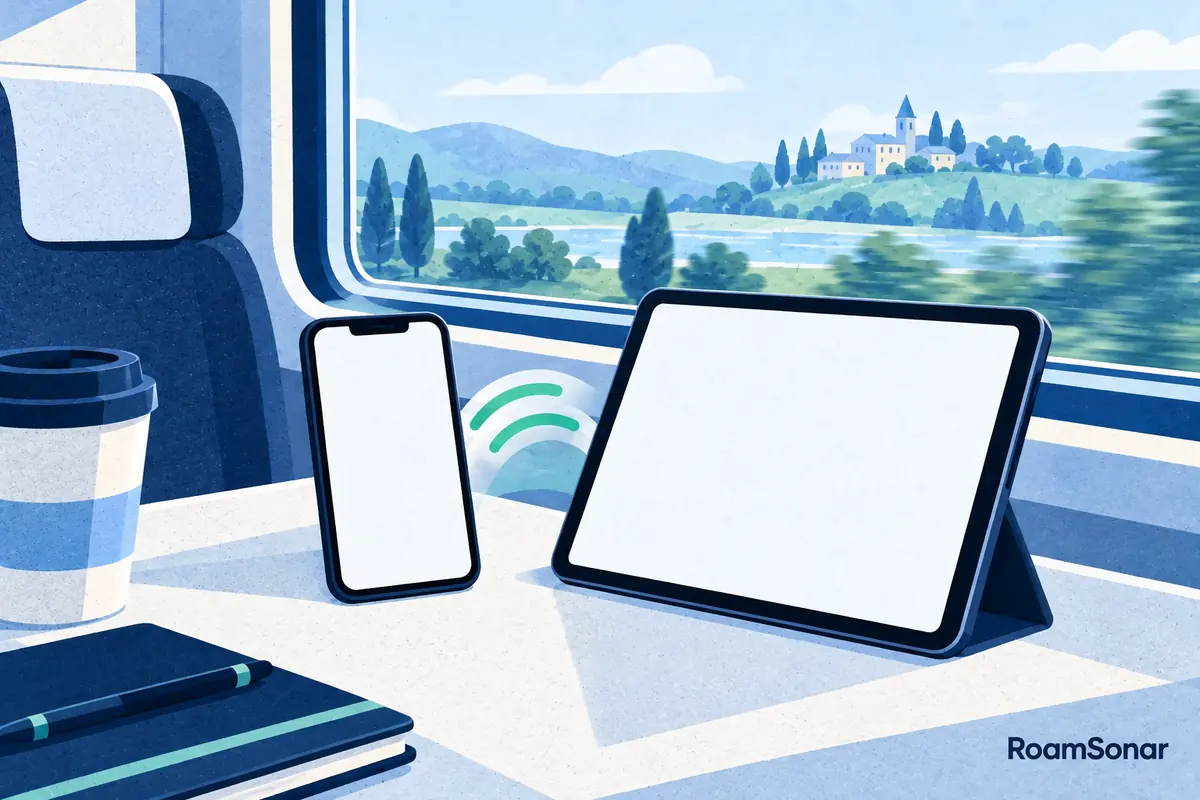
Hotspot sharing leaves the eSIM on the phone. The iPad joins a temporary Wi-Fi network, and its traffic uses the phone’s mobile-data allowance. This works for a Wi-Fi-only iPad too, provided the phone’s carrier and package permit tethering.
On an iPhone, open Settings → Personal Hotspot, enable Allow Others to Join, then select that phone under the iPad’s Wi-Fi settings and enter the hotspot password. Keep the devices nearby. The Personal Hotspot connection guide also covers Instant Hotspot for supported Apple Account and Family Sharing arrangements.
Before you connect, check which phone line supplies mobile data. The tablet cannot tell whether the internet behind that hotspot is your intended travel allowance or an expensive home-roaming connection. Our two-line iPhone travel guide explains how to keep those roles clear.
The reverse can work too: a cellular iPad can provide a hotspot where its plan supports it. That still does not create extra data. A laptop downloading an update through the tablet uses the same paid allowance, so pause large background downloads before sharing.
A carrier’s Join iPhone Plan option is different again. It adds eligible tablet service to an account; it is not permission to scan one travel QR code into two devices. Check the added-line price and roaming terms before accepting an account change.
Apple Watch: a wearable plan, not a spare travel eSIM
For independent cellular service, use a cellular-capable Apple Watch and an eligible supported carrier plan. Ordinary paired setup generally requires the same carrier as the iPhone; Apple Watch For Your Kids is a separate exception. Setup is through iPhone Watch app → My Watch → Cellular → Set Up Cellular, following the carrier’s account flow. See the Apple Watch cellular setup requirements.
Do not buy a generic tablet or phone travel eSIM expecting it to become a watch plan. Carrier number sharing links services on the carrier’s side; it is not a duplicated eSIM. Ask the carrier whether your watch model, account and destination qualify, including the cost of independent use abroad.
With the iPhone nearby, the watch can use its paired Bluetooth connection. It can also use compatible Wi-Fi; supported cellular service is another route when those connections are unavailable. That connection hierarchy means many travellers can keep the phone nearby without buying watch roaming.
International watch roaming is not automatic. Supported hardware and software are only part of the requirement: the carrier must enable the necessary roaming service. Apple Watch For Your Kids does not support international roaming. Do not switch on a home watch plan overseas merely because the phone has cheap travel data.

Samsung Galaxy Watch: check LTE and carrier support
A Bluetooth-only Galaxy Watch cannot gain cellular service by installing an eSIM. For an LTE model, use a supported wearable service and the setup flow in Galaxy Wearable → Watch settings → Mobile plans. Follow the carrier prompts; some activation methods use a carrier-issued QR code. The Galaxy Watch LTE setup guide explains the standard supported process.
Check the exact watch and paired phone together. Current Wear OS Galaxy Watches are not compatible with iOS, so an iPad or iPhone is not a substitute for the required supported phone setup. Review Samsung’s compatibility guidance before purchasing a watch for an Apple-only travel kit.
Number sharing, standalone service and international roaming vary by carrier and market. A plan advertised for smartphones is not proof of watch support. Ask specifically for Galaxy Watch compatibility, and avoid relying on hidden-menu workarounds for a device you need abroad. If ordinary phone-linked use is enough, test that arrangement before departure.
Pack a connection plan, not just more gigabytes
Separate the jobs before buying anything: phone for everyday communication, tablet for work or entertainment, watch for convenient notifications. Download films and large work files over trusted Wi-Fi. Then budget for the activities you actually expect to do away from it; our travel data guide helps with that calculation.
- Check tablet and watch model numbers, not just product names.
- Confirm the intended provider accepts the exact device and purchase region.
- Keep activation details and support contacts accessible offline.
- Test the chosen connection with Wi-Fi off, before relying on it.
- Check recurring charges separately from deleting an eSIM or removing a watch plan.
- Keep a backup for important bookings if the battery, phone hotspot or local network is unavailable.
No eSIM creates signal where its supported network is absent. A mountain lodge, offshore passage or flight needs its own connectivity check, not an assumption based on the destination country. Download your essential documents and offline maps before the trip, whichever device carries your data plan.
Questions travellers ask
Can I add an eSIM to a Wi-Fi-only iPad?
No. It lacks the cellular hardware. Use Wi-Fi or a nearby phone hotspot instead; installing an app cannot turn it into a cellular model.
Can one travel eSIM work on my phone and iPad at the same time?
Do not assume the profile can be installed on both. Use a permitted hotspot, buy separate service, or ask your carrier about an eligible shared-account tablet plan.
Can I put my iPad travel eSIM on an Apple Watch or Galaxy Watch?
Do not treat them as interchangeable. Independent watch connectivity requires the correct cellular model and a supported wearable service. Confirm compatibility with the carrier before buying.
Should I buy a separate eSIM just for occasional iPad use?
Start by checking whether your phone plan allows hotspot sharing and whether the phone will stay nearby. Buy independent tablet data when separation, convenience or your working routine makes that worthwhile.