
Table of contents
Before departure, “activating” can mean that an installed travel eSIM has not yet reached a supported destination network. It does not prove that every installation step succeeded. Check whether the profile is actually present and read the package’s validity-start rule before retrying.
There are two different problems to separate: a profile that never downloaded, and a downloaded profile waiting to connect. Repeating installation instructions for the second problem can create more confusion—especially if the activation code is not reusable.

First, identify the stage
| Situation | Useful next step | What it does not establish |
|---|---|---|
| Travel profile appears, but you are outside its coverage | Check activation policy and wait for the covered location if required | That the package will definitely work on arrival |
| No travel profile appears | Check stable internet and the original installation method | That rescanning repeatedly is safe |
| The profile is installed and you have already arrived | Follow the no-data checks | That waiting longer will fix every error |
| The code says already used or no longer valid | Check the QR-code guide | That you should delete the profile |
Check without removing the profile
- Open Settings and inspect the SIM list. On iPhone this is Cellular or Mobile Data; on Pixel, Network & internet → SIMs; on Galaxy, Connections → SIM manager. Menu wording varies.
- Match the profile to your order. A name such as Travel or Secondary alone is not enough if you have several eSIMs.
- Open the exact package in the provider’s app or order email. Check its included countries and which action starts validity.
- Record the status and error wording. Keep the order and official support route available offline for arrival.
A profile in Settings is useful evidence of installation, but it does not confirm that a paid package is active, that identity checks are complete, or that the destination has usable coverage. If you are uncertain which profile matches the order, ask support before changing it.
Airalo’s pre-departure message has a documented explanation
On iOS, an Airalo eSIM can remain on “activating” or show an activation failure before the traveller reaches its destination. Airalo’s activation help describes this outside-coverage case. Treat it as a possible explanation after checking that your profile is installed—not a blanket diagnosis for every provider or error.
Airalo’s installation and connection instructions also distinguish the installed profile from a data session. Check the validity wording for your purchase: many packages start on a covered network, but some start at installation. Never assume that a waiting status guarantees the countdown has not begun.
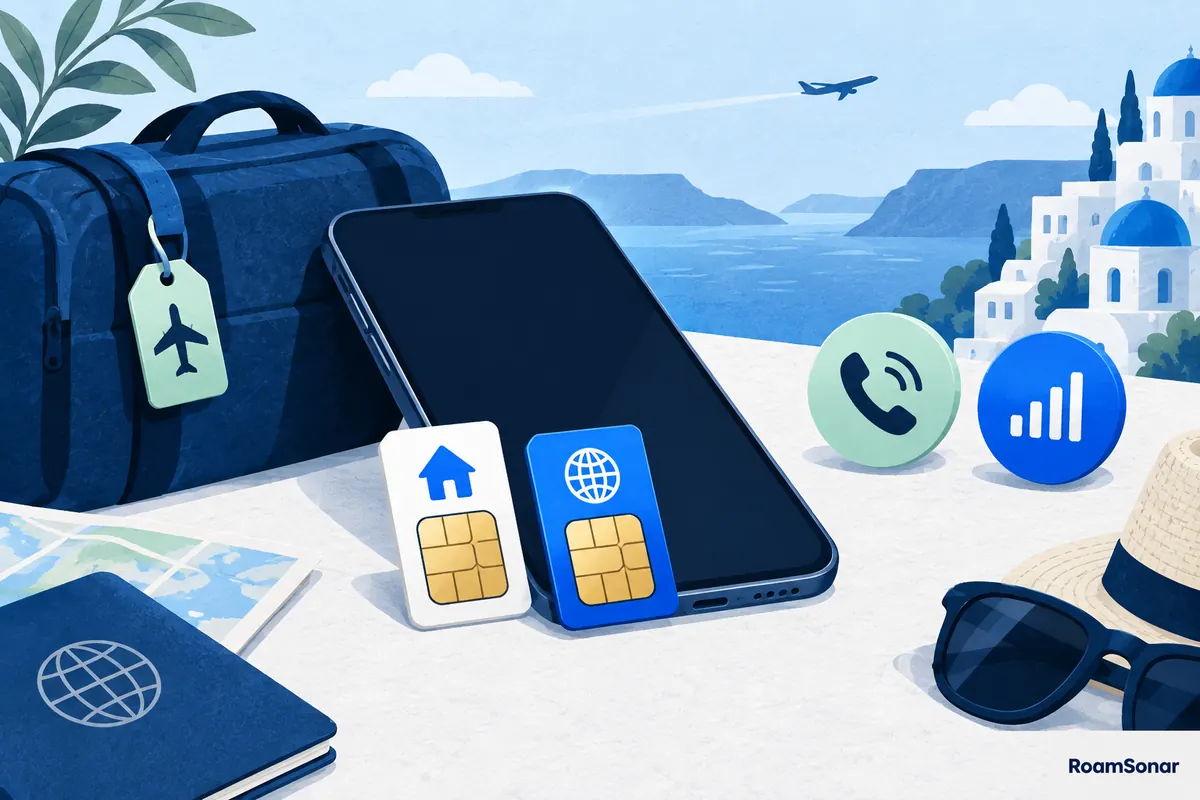
Could the plan start before you leave?
Yes, depending on its rules. Installation-triggered validity can start before departure. A regional or global package might also include your current country, so enabling it there could satisfy a first-network-connection rule. Read the included-country list as well as the word “activation”.
Ask the provider a precise question:“For this order, does validity start at installation, manual activation, first covered-network connection or another event?” Keep the answer with your receipt. Turning a line off is not the same as pausing a validity clock that has already started.
Do not enable your home SIM’s data roaming to force the travel eSIM to activate. If you need to manage two lines, our dual-SIM travel guide explains the separate roles and charges without changing the package’s activation policy.
If the profile never appeared
Return to reliable Wi-Fi and the provider’s original order instructions. A download needs a working internet connection. Confirm the device and carrier-lock requirements through the existing installation guide and unlock check; this article does not replace those checks.
Restarting and checking the SIM list again is safer than deleting an uncertain profile. Apple’s setup troubleshooting includes a line toggle and restart for relevant iPhone problems. If the same code is then refused, stop and ask whether the download was already assigned to the device. Do not repeatedly try it on another phone.
After arrival: test once, then escalate with evidence
- Confirm that the actual destination is included and that the package is still valid.
- Enable the travel line, select it for data and apply only the provider’s roaming/APN instructions.
- Make one small webpage test with Wi-Fi briefly off. If it fails, use the installed-but-no-data checklist.
- If registration still fails, send the provider your location, device/software, error and order reference through verified private support.
There is no single safe activation waiting time for every travel eSIM. Follow a timescale supplied for your package, if one exists, and contact support when its stated conditions have been met. Do not turn “wait until arrival” into advice to ignore a continuing failure at the destination.
Frequently asked questions
Does activating mean my data allowance has started?
Not necessarily. The device status and package validity are different. Read the order’s start rule and check its actual status in the provider account.
Should I delete a profile that is stuck activating?
No, not as a general fix. Check whether it is already installed and whether you are inside its coverage. Ask the provider before removing a profile you still need.
What if my eSIM is still activating after I land?
Check exact coverage, validity, data-line selection and the provider’s required settings. If those are correct and it still cannot register, contact support rather than assuming more waiting or reinstalling will solve it.